Click here for a printable version
How to edit your gallery pages (WILLOW, METAL, WIRE)
IMPORTANT – to make changes to your galleries, follow the instructions below. Do not try to edit the actual page. Any changes you make to your gallery will automatically appear on the correct page.
- Click on the Envira Gallery tab.
- You will see this screen.
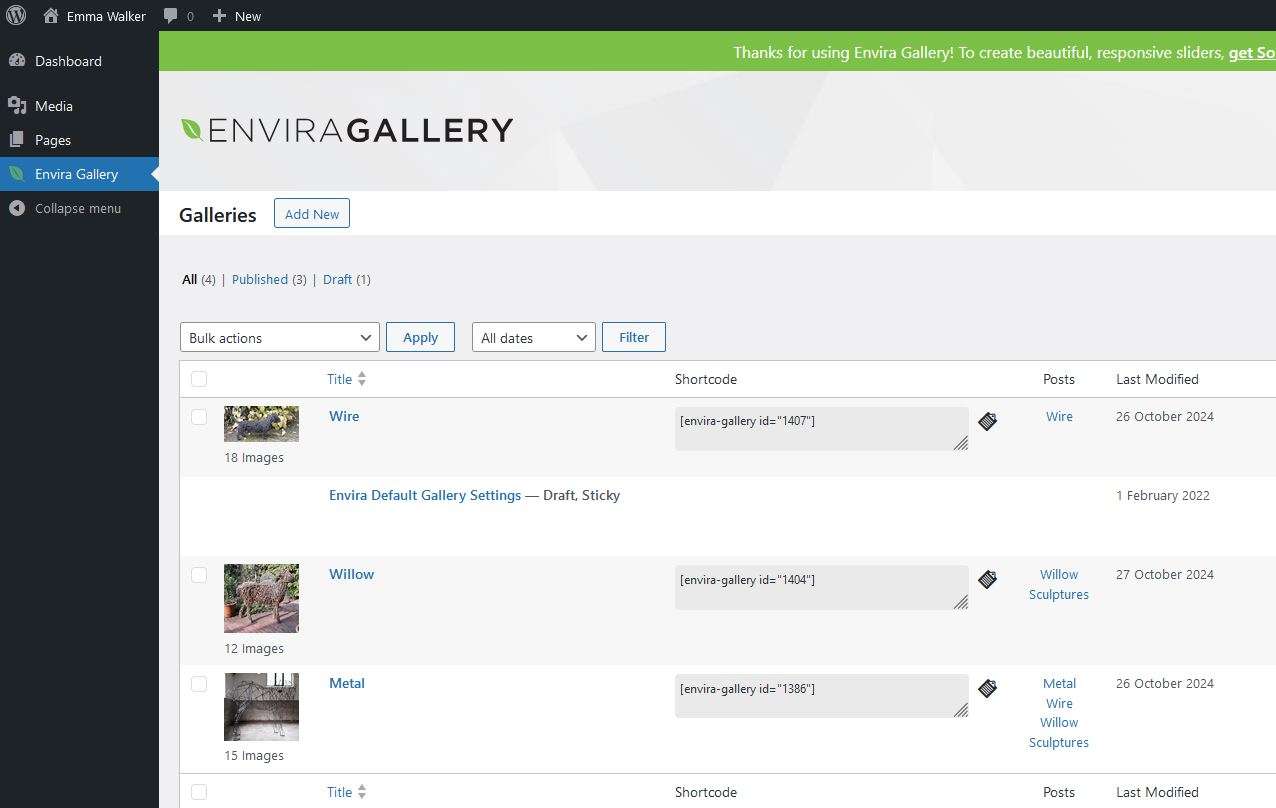
3) Click on the title of the gallery you wish to edit (the titles are in blue – wire, willow or metal). You will see this screen.

-1- You can select files from your computer to upload. We recommend that you resize your images before uploading to 1200px wide. Alternatively, you can upload your original images to your media library and the WordPress software will resize them. However, this process can take a while, so we recommend that you upload your images to your media library, leave the site for an hour or so, and when you get back, your images should be in your media library, resized and ready to use. But it is quicker to resize them first when they are ready for immediate use.
-2- You can drag and drop the thumbnails into your preferred order.
-3- You can delete an image by clicking on the red bin, Note that this will not delete the image from your media library, so if you no longer need the image, delete it from your media library too. Images take up a lot of space so it is good practice to delete old images from your media library.
-4- You can hide an image by clicking on the green eye icon.
-5- You can edit the caption by clicking on the blue pen icon. This opens the image detail screen as below. You can add or edit the caption. Make sure you click on the green Save Metadata button to save your changes.

How to edit your web pages (HOME, ABOUT, CONTACT).
To edit a page, click on the Pages tab to the left of the screen. You will see a list of your pages. Click on the title of the page you want to edit.
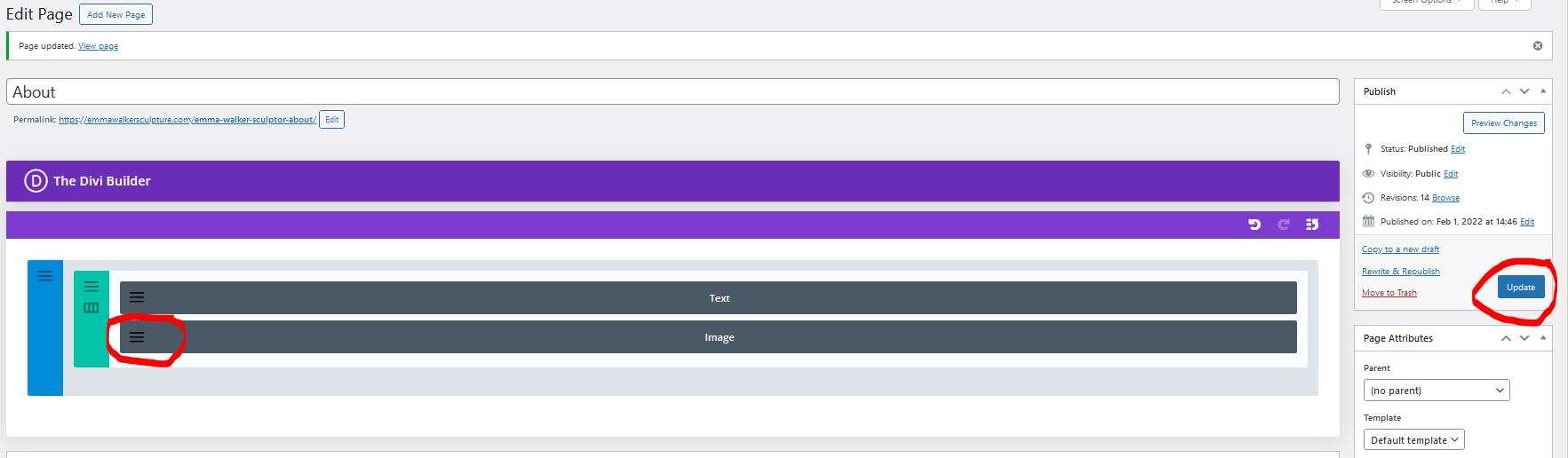
For example, the About page editing screen will look like this:
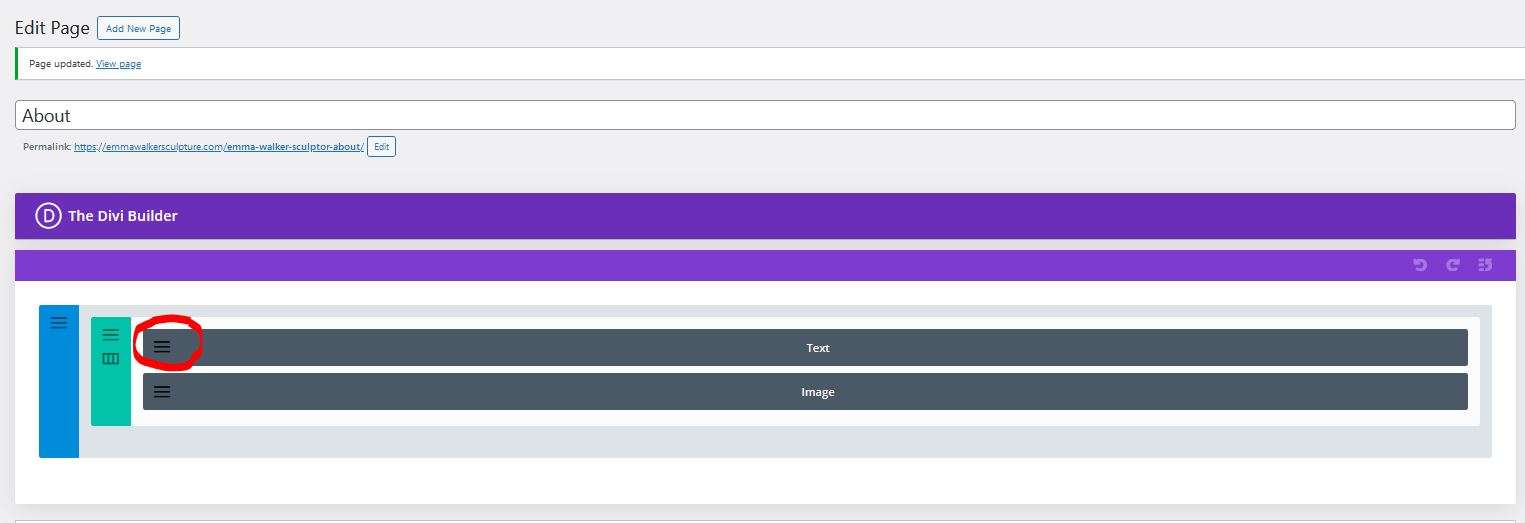
The labelled grey bars represent your content areas. Click on the three horizontal lines to open the editor for each named section on your page. For example, if you want to edit the text on the page, click on the grey lines on the Text section (circled in red). This will open a text editor and you can make your changes.
This is what the text editing screen looks like:
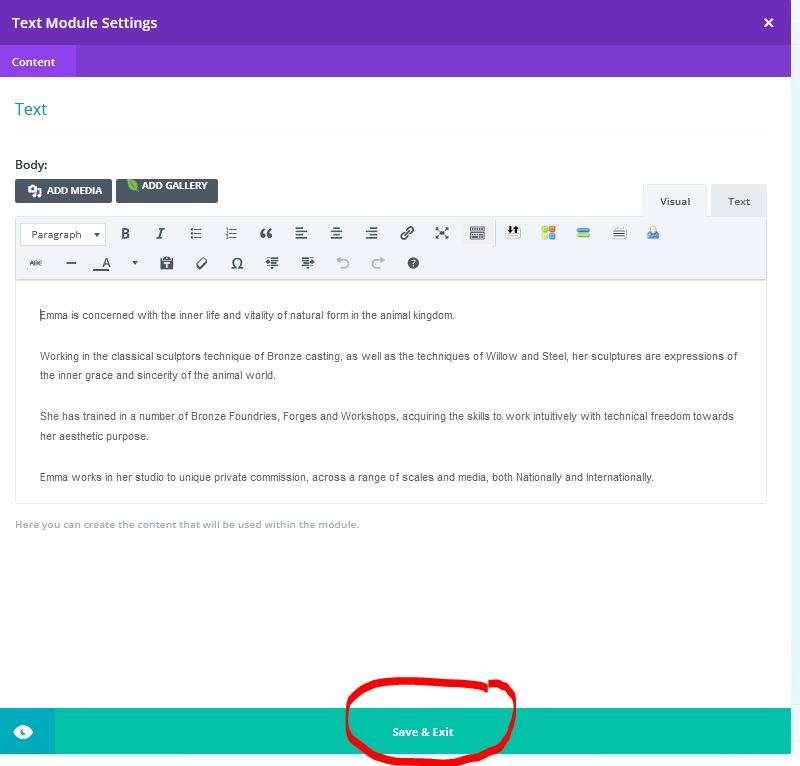
When you have made your changes, don’t forget to click on the green Save and Exit bar. Then save the changes to the page by clicking on the blue update button to the right of the screen.
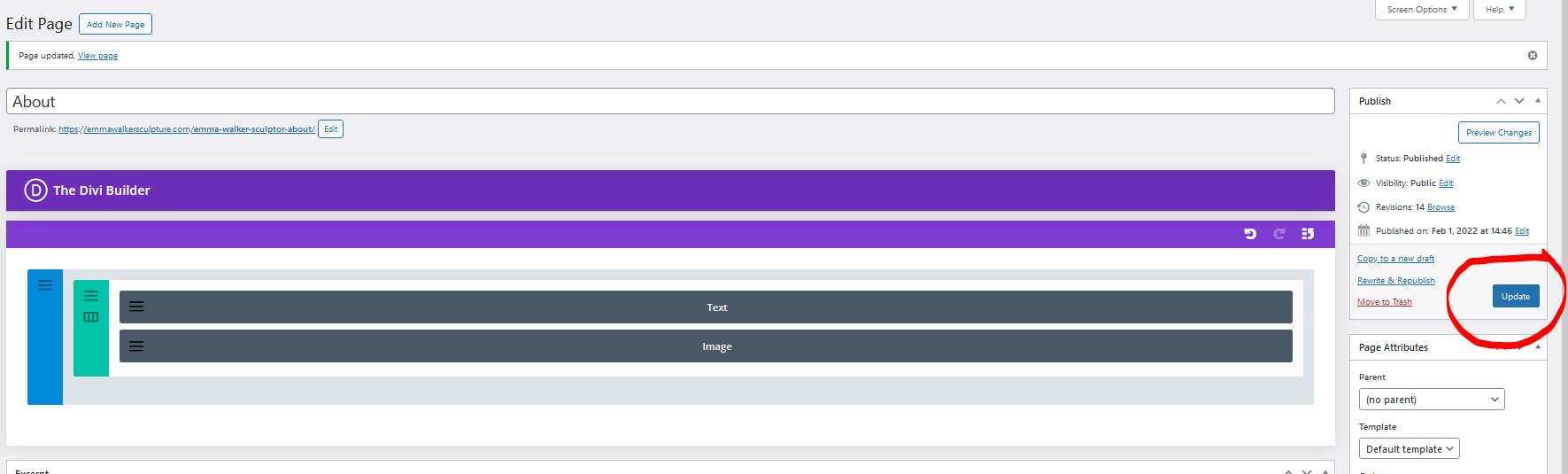
Then check how your page looks on the front end of the site. Tip: It is a good idea to have two tabs open in your browser – one showing the editing screen and the other showing the front end of your site. If you can’t see your pages, click on the Purge Cache button at the top of the editing screen.
The process is the same for editing an image on the page, but this time, click on the grey bar that says ‘Image’. This will open your image library and you can upload a new image or change to another image.
WordPress training videos website – login details
On the training site, you can view some general WordPress training videos. If you are new to WordPress, I strongly advise you to look at this as an introduction. There are videos on how to upload images, how to display images, how to add links to your pages etc. To view the videos, click on the member login link below.
Username: (do not enter email address if asked – use password below):
Training
Password:
PeachMangoCatLemon-007
Both are case-sensitive.
After you log in, you will see blue links to the videos at the top and bottom of the page. Click on either.
Paid for Editing Service
WordPress can be difficult to master. If you do not have the time or technical inclination to edit your site, you can always use our paid-for editing service. We charge by the hour for our time. Our average update invoices are between £15 and £30 (depending on what exactly needs doing). Just email your brief and any media you want to include to moc.liamg@setisbewoiduts. Very small changes, such as fixing typos or changing an email address, are usually done free of charge.
Editing support
If you have any queries about how to edit your site, please email moc.liamg@setisbewoiduts. Please give full details on what you are trying to do, what page, what image, what the problem is etc. We usually update within 48 hours, usually much quicker.